Screens
The Runtime Draws
A screen's program draws nothing. It answers what to draw, and the runtime takes that and draws it.
Counter >> view = Paint group: #[
        Paint rect: 0 y: 0 w: 320 h: 160 color: #paper,
        Paint move: (Paint column: #[
            W label: ('pressed ' , n asString , ' times'),
            W gap: 20,
            (W button: 'Press' wide: 120) on: #click send: Bump ] gap: 0) x: 24 y: 28 ].
When the screen's state changes, the runtime calls view again and draws the result. There is no code in the program saying "draw this again" or "update that widget", so the state and what is shown never disagree.
The pieces are rectangles, text, discs, lines, polygons and pictures, with ways to arrange, group, layer and clip them. Something lifted above the rest, like a dialog, and a confirmation that ignores presses outside it, are written the same way.
Only What Changed Is Drawn Again
A screen's program does not say what to draw again. The runtime tells for itself which parts did not change, and leaves them alone.
Make each row of a list, or each reading on a monitoring wall, an actor of its own, and a frame draws only the rows or readings that changed. On a wall of 280 readings, the median frame drew 16 pieces.
Actor subclass: #Row fields: (name, picked).
Row >> Pick = self copyWith: { picked: picked not }.
Row >> view = (
    bg := picked ifTrue: [ #chosen ] ifFalse: [ #paper ].
    (Paint group: #[
        Paint rect: 0 y: 0 w: 280 h: 36 color: bg,
        Paint move: (W label: name) x: 12 y: 8 ]) on: #click send: Pick).

Actor subclass: #List fields: (rows).
List >> view = Paint column: (rows collect: [ :r | Paint child: r ]) gap: 0.
Paint child: r hands that place to the row's actor r, which draws itself from its own state. Press one row, and that row is all that is drawn again.
What a Press Does Is Checked Where It Is Written
(W button: 'Save' wide: 120) on: #click send: SaveThis says: pressing the button sends the screen a Save. If the screen has no method that handles Save, the program does not start. A button added without its handler, or a misspelt name, is found before any user presses it.
Input that carries values, such as a drag or the wheel, works the same way: the values go into the fields of the message that receives them, and a mismatch in number or type is an error before the program runs.
Object subclass: #MoveBy fields: (dx, dy).
MoveBy >> dx = dx.
MoveBy >> dy = dy.

Desk >> MoveBy m = self copyWith: { x: x + m dx, y: y + m dy }.

Desk >> view = Paint group: #[
    Paint rect: 0 y: 0 w: 400 h: 260 color: #paper,
    (Paint rect: x y: y w: size h: size color: #mark) on: #drag send: MoveBy ].
Clicks, typed text, keys, drags, the wheel, double clicks, context menus and dropped files are all handled.
The Keyboard Works as in Windows Business Applications
The runtime takes care of the keys users are used to; no screen has to write them.
- Tab and Shift+Tab move between fields, in the order the screen lists them; the order can be changed and fields left out.
- Space or Return presses the button with the focus.
- A button captioned
&Saveis pressed with Alt+S, and the S is underlined. - While a dialog is up, Tab stays inside it; closing it puts the focus back where it was.
- Escape goes to whatever is on top.
- A combo box opens on F4 and Alt+Down.
Colours Are Written as Names
A colour is written as a name, #paper or #ink, and each screen's colour table says what the names are. Switching between day and night colours is answering another table. Matching a company's colours is one table that every screen uses.
Japanese Input
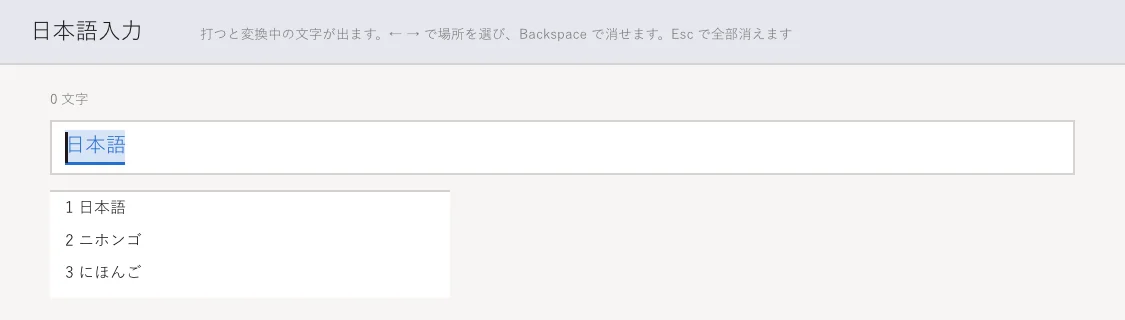
The composing text and the candidates, drawn inside the field
The text being composed appears at the caret inside the field, and the candidate list can be drawn by the screen too. Only committed text reaches the program, so it never has to deal with a conversion halfway through.
A one-line field has selection, copy, cut and paste, undo, and moving a word at a time. A multi-line box adds wrapping, which keeps the rule that some characters (、。」 and the like) may not start a line.
Widgets
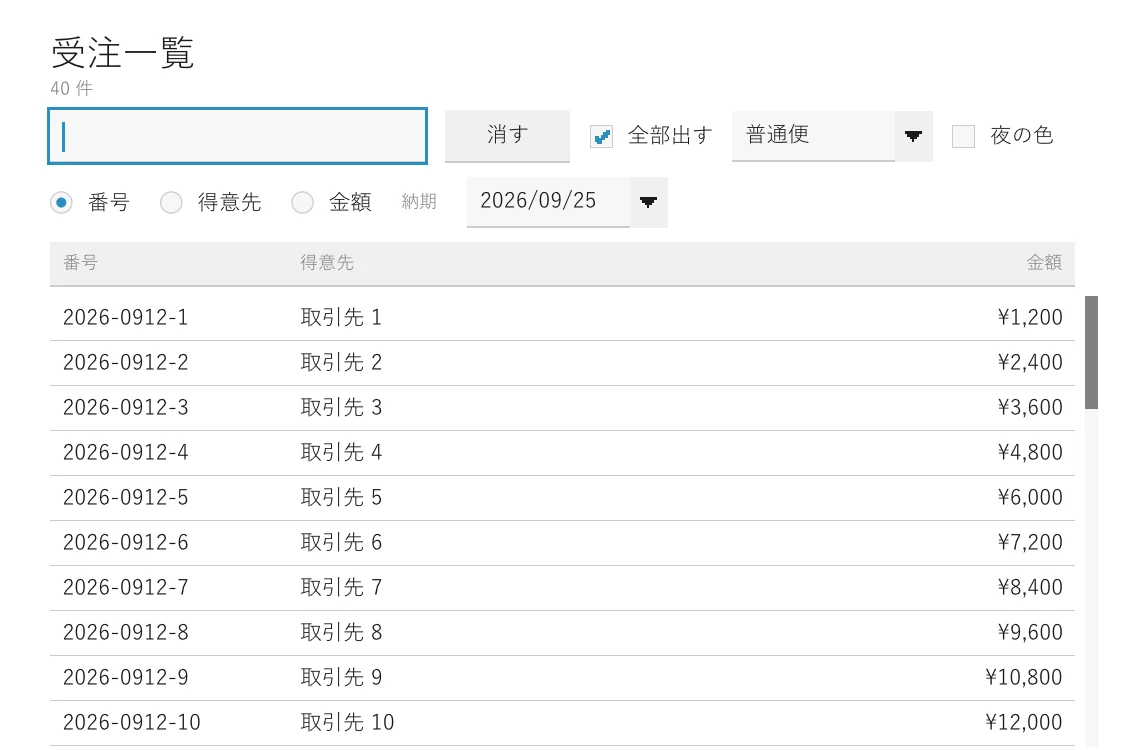
A field, buttons, a check box, a combo box, radio buttons, a date and a list
Buttons, fields, multi-line boxes, check boxes, radio buttons, switches, combo boxes, tabs, lists, trees, a calendar, scrollbars, sliders, meters, sparklines and a busy spinner.
A widget only answers how it looks; it holds no state and no handler. What a press does is written by the screen that uses it. Nothing is hidden inside a widget, so reading a screen's code tells you what happens.
A table's columns are defined once, and the heading, each row's cells and the sorting all read the same definition. Changing a column's width is one place.
The Window
- The title and the icon are written on the screen's class, and the icon is embedded in the executable.
- A screen with a fixed size is scaled to fit the window; a screen can also lay itself out again to the window's size.
- The window's position and size can be remembered and restored the next time.
- The screen is told once when the window closes, and a save started then runs to the end without being cut off.
- The system's open and save file dialogs are there.
Resident Tools
Tools that stay on the desktop can be written too.
- An icon in the tray with a menu. A menu item, like a button, has what it sends checked where it is written.
- A hotkey that works whatever program is in front, including a double tap of Ctrl.
- Being told whenever anything is copied in any program, and telling apart what a password manager marks as not to be kept.
- A close button that only hides the window.
Resident class >> start = (
    Hotkey register: 'Ctrl Ctrl'.
    Window hide.
    Resident fields: { copied: '(nothing copied yet)', from: '' }).
Resident class >> hidesOnClose = (true).

Resident >> tray = #[
    ((Tray item: 'Show') on: #click send: BringUp),
    Tray separator,
    ((Tray item: 'Quit') on: #click send: Quit) ].

Resident >> ClipboardChanged = (
    Resident fields: { copied: Clipboard text, from: (OS foregroundApp orElse: '?') }).

Resident >> HotkeyPressed h = (Window show. self).
Resident >> BringUp = (Window show. self).
Resident >> Quit = (Window close. self).
Hotkeys, the name of the program in front and the clipboard's mark exist on Windows alone. Building a program that uses them for another system is refused, rather than producing one that silently does nothing.